Sift
A native macOS app for everything you saved "for later": open tabs on all your devices, your Reading List, Instagram saves, TikTok favourites, X bookmarks, YouTube Watch Later and exports from read-later tools. It is also a feed reader with a daily digest, Today, that ranks on your Mac and never builds an unread pile.
Most of those links are not junk. Each one is a small promise to yourself: this could matter. The browser keeps the link and forgets the promise. Sift reads the pile back to you as the themes you keep coming back to, gives each link an honest next step, keeps the text of every page in a library on your Mac, and remembers what a link was about after the tab is gone.
The principle: your sprawl is not a problem to fix. It is a record of your curiosity, and Sift makes it legible.
And it stays yours. Sift turns what you already save, on the platforms you already use, into a knowledge base on your own Mac: the full text of pages, video and reel transcripts, your notes and themes, in plain Markdown, JSON and SQLite. No account, and your library never goes to a Sift server. Your own Claude can search it and work on it through the built-in MCP server, and you can open every file without Sift.
Contents: How it fits together · Sources · Today and feeds · Themes · Graph · Lists and the reader · Keyboard · Send · Library · Claude and sift-mcp · iPhone · What Sift sends where · Install · Settings · Architecture · Limitations
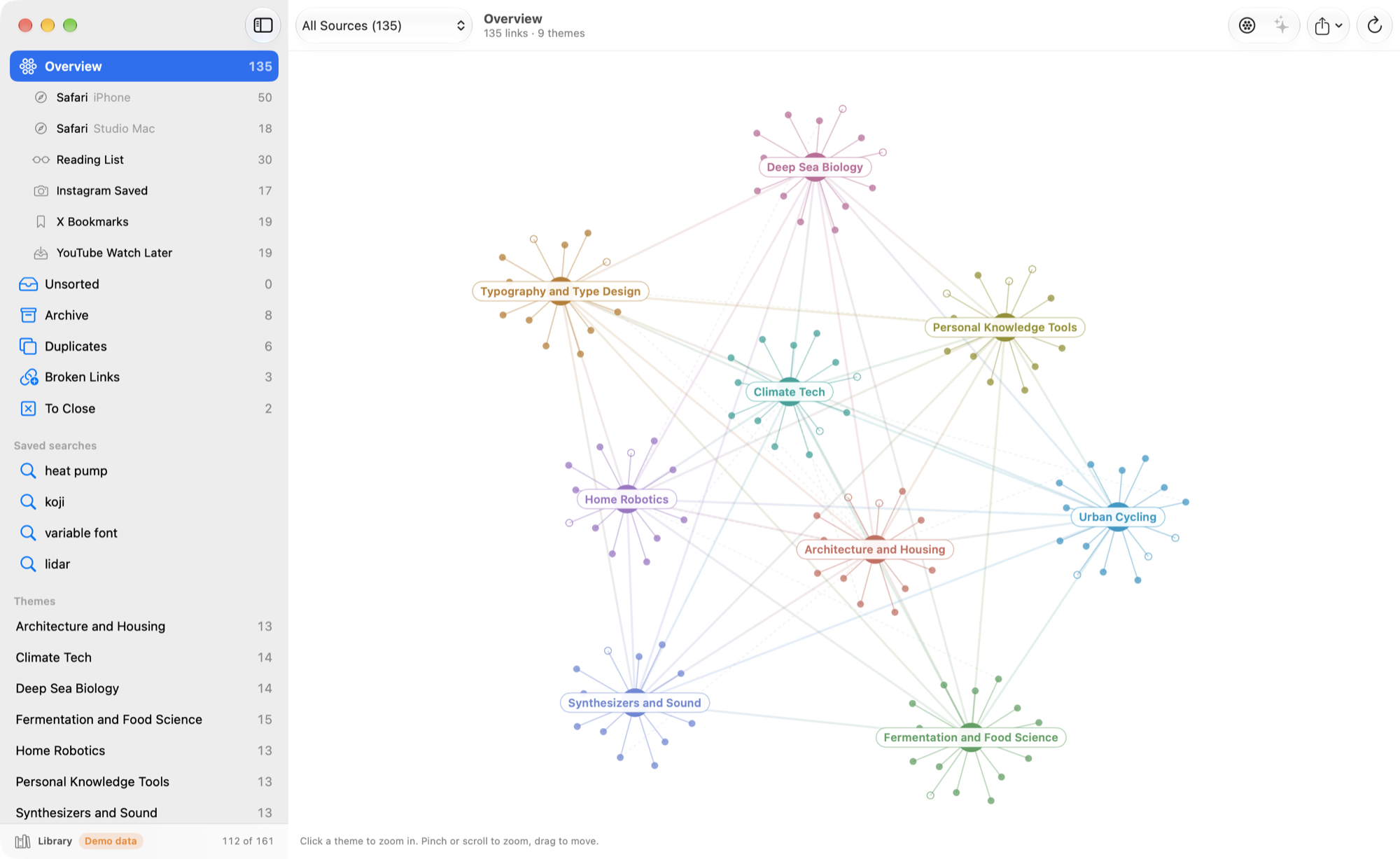
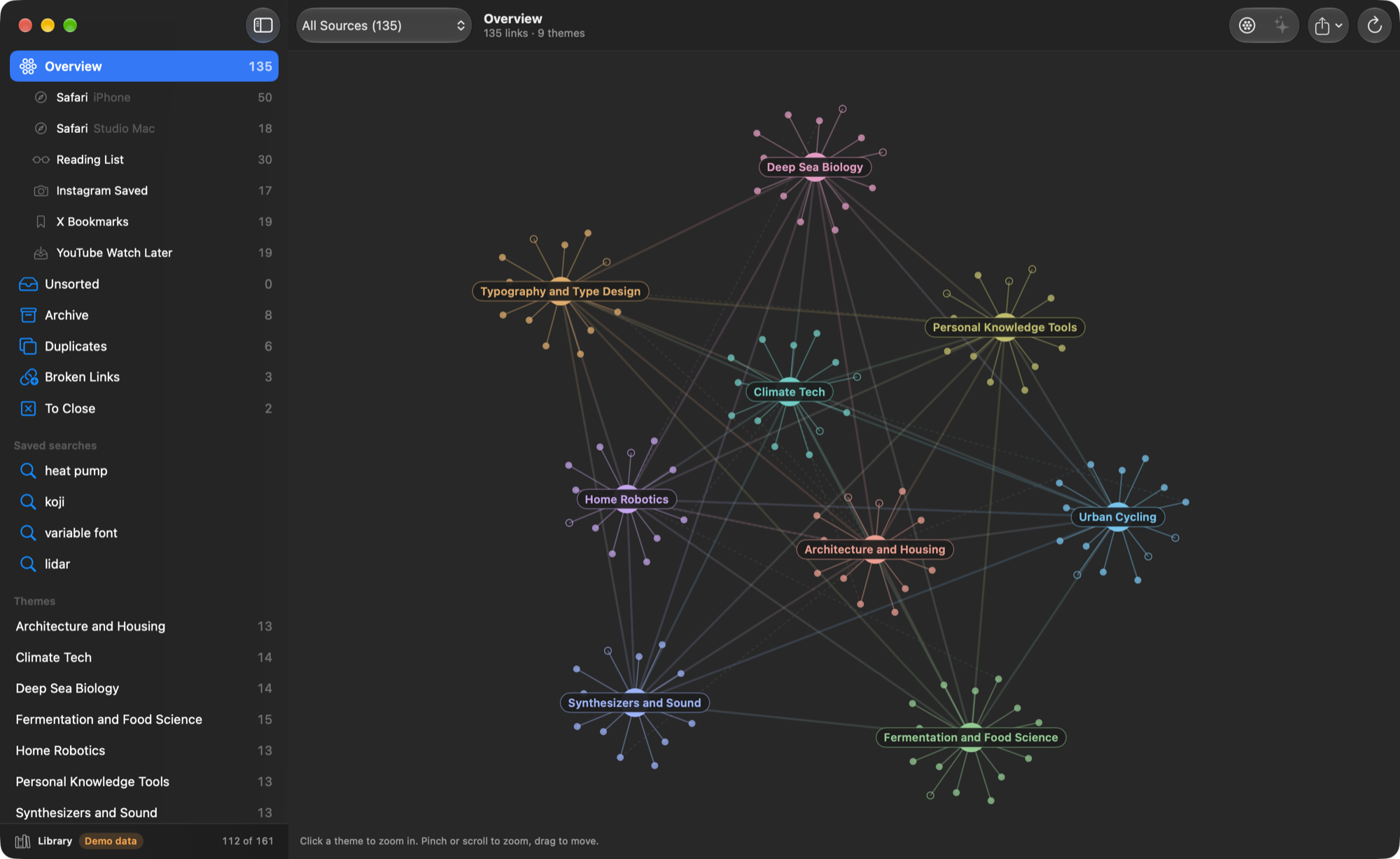
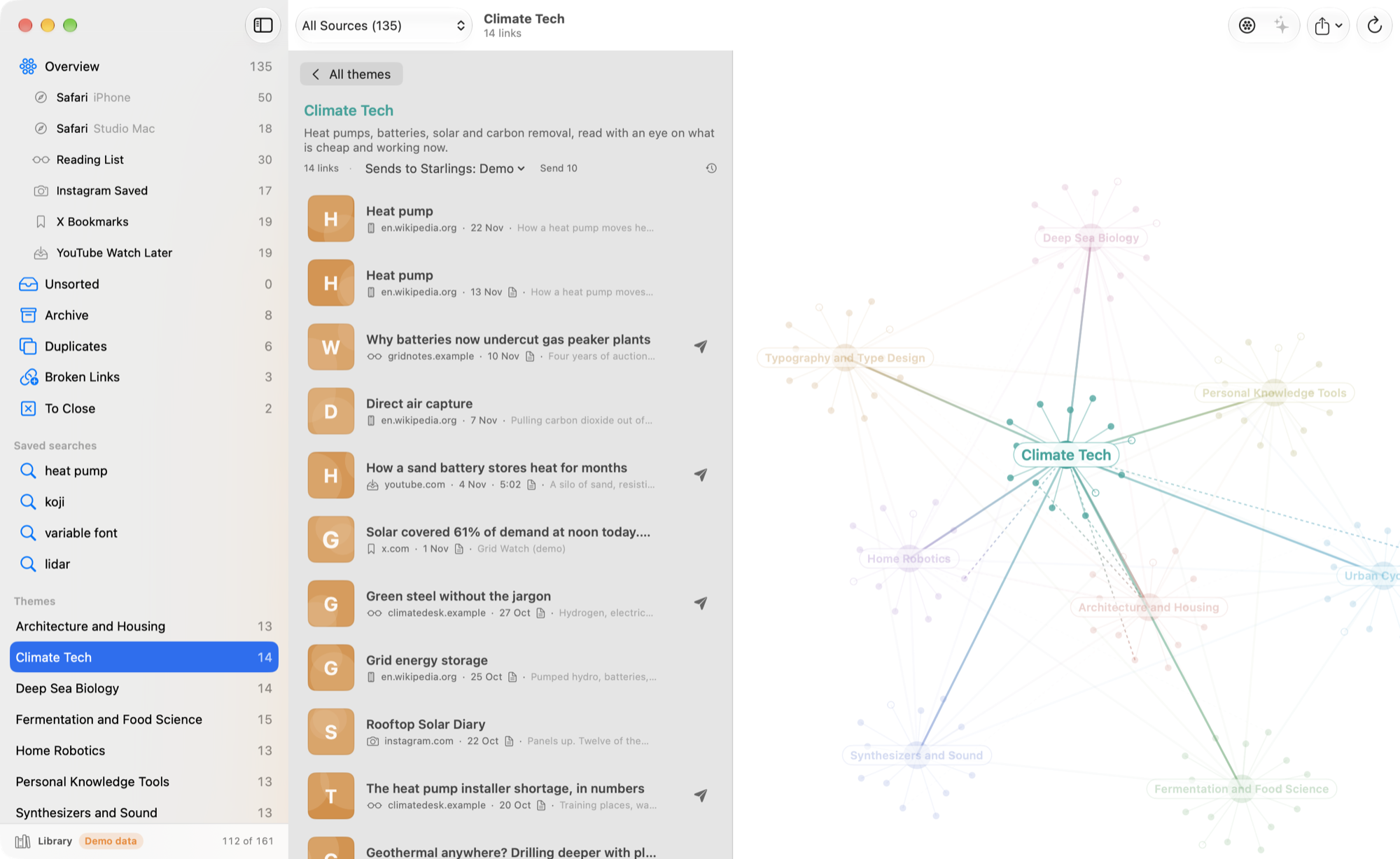
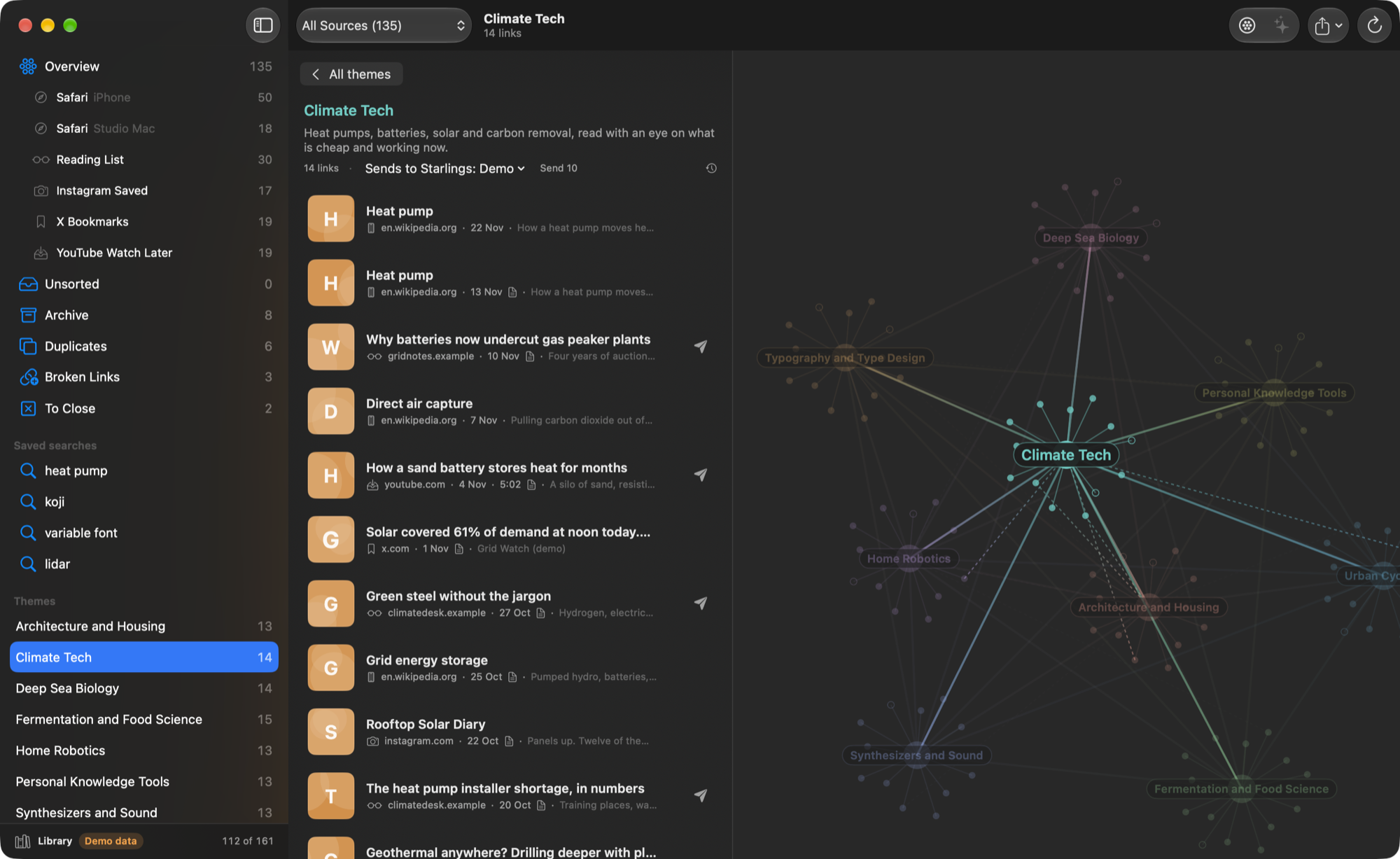
Screenshots use Sift's demo mode and made-up sample data.
How it fits together
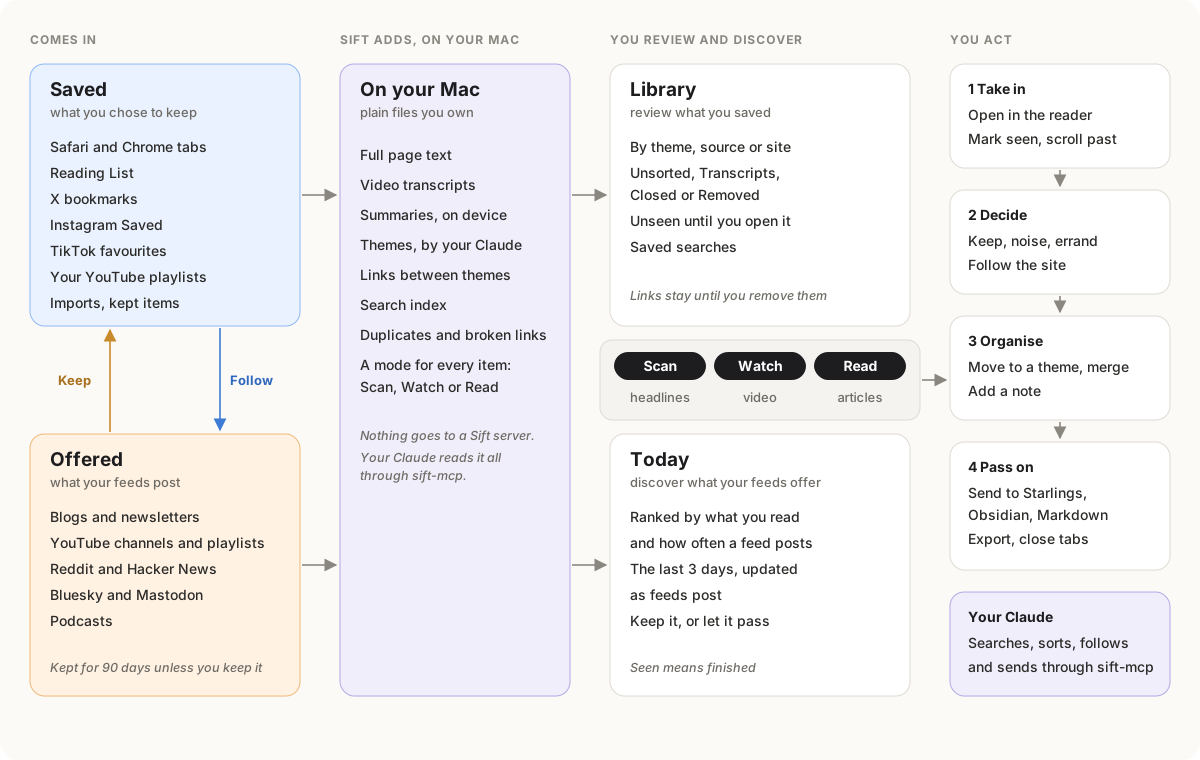
Sift has two kinds of input. Saved links are what you chose: tabs, Reading List, bookmarks, Instagram, TikTok, your YouTube playlists, imports. They stay until you remove them. Offered items are what your feeds post. Sift keeps them for 90 days unless you keep one. Keep moves an offered item into your saved links; Follow subscribes to the site of a saved link.
You review saved links in the Library and discover offered items in Today. Both have the same Scan, Watch and Read switch. Settings > How It Works shows this diagram.
What it does
Sources
The source picker in the toolbar reads, all read-only:
- Open tabs that Safari syncs from your iPhone, iPad and other Macs through iCloud.
- Safari's Reading List.
- Chrome tabs, from every window of each Chrome profile where you add Sift's extension (Brave, Edge, Arc, Vivaldi and Chromium work too). See Chrome below.
- Instagram Saved, from Instagram's data export. In Instagram's Accounts Center, open Download your information and ask for JSON (HTML does not work), then choose the zip in Settings > Inputs.
- TikTok, from TikTok's data export: your favourite videos, and your liked videos if you turn that on. In TikTok, open Settings and privacy > Account > Download your data and ask for JSON, then choose the zip in Settings > Inputs. Sift reads each video's caption, author and cover from its public page and does not sign in.
- X Bookmarks, with the optional X API connection.
- Imported files: File > Import Links File reads Instapaper and Pocket CSV, Readwise Reader and Raindrop CSV, Pinboard JSON, and the bookmarks HTML that browsers and most tools export. Sift finds the URL, title, folder or tags and date by name. Each file is its own source.
- YouTube Watch Later and playlists, from a Google Takeout export of "YouTube and YouTube Music" (the YouTube API cannot read Watch Later). Import the Takeout zip with File > Import Links File.
- Feeds you follow. Their items are offered, not saved: they show in Today and in the feed's own list, never in your themes. See Today and feeds.
- Kept from Today: feed items you chose to keep. These are saved like any other source.
- All Sources: every saved source together, each link once, newest first, with a small icon for where it came from.
Today and feeds
Follow (the + in the toolbar, Shift-Command-N, the A key or File >
Follow…) takes almost anything: a site, a feed address, a Substack,
r/subreddit, @name.bsky.social, @user@mastodon.social,
#tag@instance, a YouTube channel or playlist, podcast: name,
owner/repo on GitHub, a Medium or Tumblr address, hn or hn: words,
news: words, arxiv cs.AI. It starts from an address on the clipboard,
finds the feed while you type, and shows how often it posts and its newest
titles before you follow. You can pick a folder and the feed's place in
Today there. Drop a link or an OPML file on the sheet, or on the sidebar's
Feeds section. "Follow <site>" is also in every link's context menu (F), and
Sift suggests sites, subreddits and repositories you save often. feed://
and sift://subscribe?url= links open in Sift. Each kind of input is a
small provider plugin (CONTRIBUTING.md).
Your playlists are saved links. YouTube's Watch Later list is private,
so no app can read it. Make a public or unlisted playlist instead, add
videos to it from any device, and paste its link
(youtube.com/playlist?list=…) into Follow. Add to Library makes it a
Library source, like Reading List: its videos get transcripts and themes,
and a video you take out of the playlist moves to Closed or Removed. Sift
reads the first 100 videos, not only the 15 that YouTube's playlist feed
holds. Follow in Today is for someone else's playlist. Any feed can switch
with Move to Library as My List in its context menu, and back with Show in
Today Instead.
In Settings > Inputs > Feeds, Import OPML shows every feed in the file by folder, so you can follow all of them or a subset. Export OPML takes your feeds to any other reader. The sidebar lists feeds and folders. Drag a feed onto a folder, or use Move to Folder in its context menu. Counts show items held. Sift shows no unread counts.
Today is the digest. It updates after each feed check and keeps what is already there in place; new picks go on top. It takes items from the last three days and ranks them on your Mac. Today does not call Claude.
- Items from Don't Miss feeds always show, for 14 days or until you see them.
- A link that two or more of your feeds share is hot and goes first.
- The rest are scored by freshness, how often the feed posts (a feed that posts 50 times a day does not drown one that posts weekly), what you did with the feed before (keeps, reads, time on the phone), and overlap with your themes.
- Each feed gets one or two places at most. One place goes to a feed Sift knows little about yet, and one to a wildcard.
Every pick has a line that says why it is there. Help > How Today Works (also the ? in Today's toolbar) shows these rules and each feed's standing: its priority, posts a day and what Sift learned. You can change a feed's priority there: Auto, Don't Miss, Normal, Best Only or Not in Today. Auto makes a feed that posts more than five times a day Best Only.
An item opens as text first, like a reader app: the feed's full text, or the article that Sift fetches once and keeps. The Reader/Page switch shows the web page. Links inside open in Sift's own browser window, not in Safari, so they do not come back as tabs. Keep (S, the context menu or the button above the page) moves an item into Kept from Today and your library. What you do not keep leaves Today after three days.
Themes
There is no folder structure to set up. Discover Themes sends every link to your own Claude in one call and asks what you keep coming back to. You get 12 to 20 themes in Title Case, each with a description, the links behind it and a suggested home. You rename, untick or accept them; nothing changes before you do. Run it again later and Claude keeps the names that still fit, so links do not reshuffle. There is one set of themes for every source.
New links that are in no theme yet show as a grey cluster. The box at the foot of the sidebar counts them and has a Sort menu:
- Sort into Themes files new links into the themes you have. It is the cheapest option.
- New Themes from Unsorted sends only the unsorted links to Claude and proposes themes for those that fit none of yours. Your themes stay as they are, and links that fit one of them go there.
- Discover Themes Again reads everything and rebuilds the whole set.
To join two themes, use Merge Into in a theme's context menu or in Settings > Themes. Every link, hand moves included, and the theme's history move to the theme you keep.
Tabs that are open for a task rather than out of curiosity (orders, accounts, carts, searches, dashboards, documents being edited) go to an errands bucket. Sift spots the clear ones by URL and never sends them to Claude; they stay out of themes, the graph and exports. The other buckets are personal, drop and unknown. You can move any link by hand, and Sift never overwrites a choice you made.
Graph
The overview is a graph that loads in place. Each theme is a node with its links around it as dots, and lines join themes that draw on the same sources (the same site, or posts that link to the same domain). Colors are spread evenly around the color wheel for however many themes you have, at equal lightness, in light and dark mode. Hover a theme and the others fade.
Click a theme and the camera glides onto it: its links appear as a list in a panel on the left, with the cluster still in view. Pinch or two-finger scroll to zoom the map. Esc or a click on empty space zooms back out.
Lists and the reader
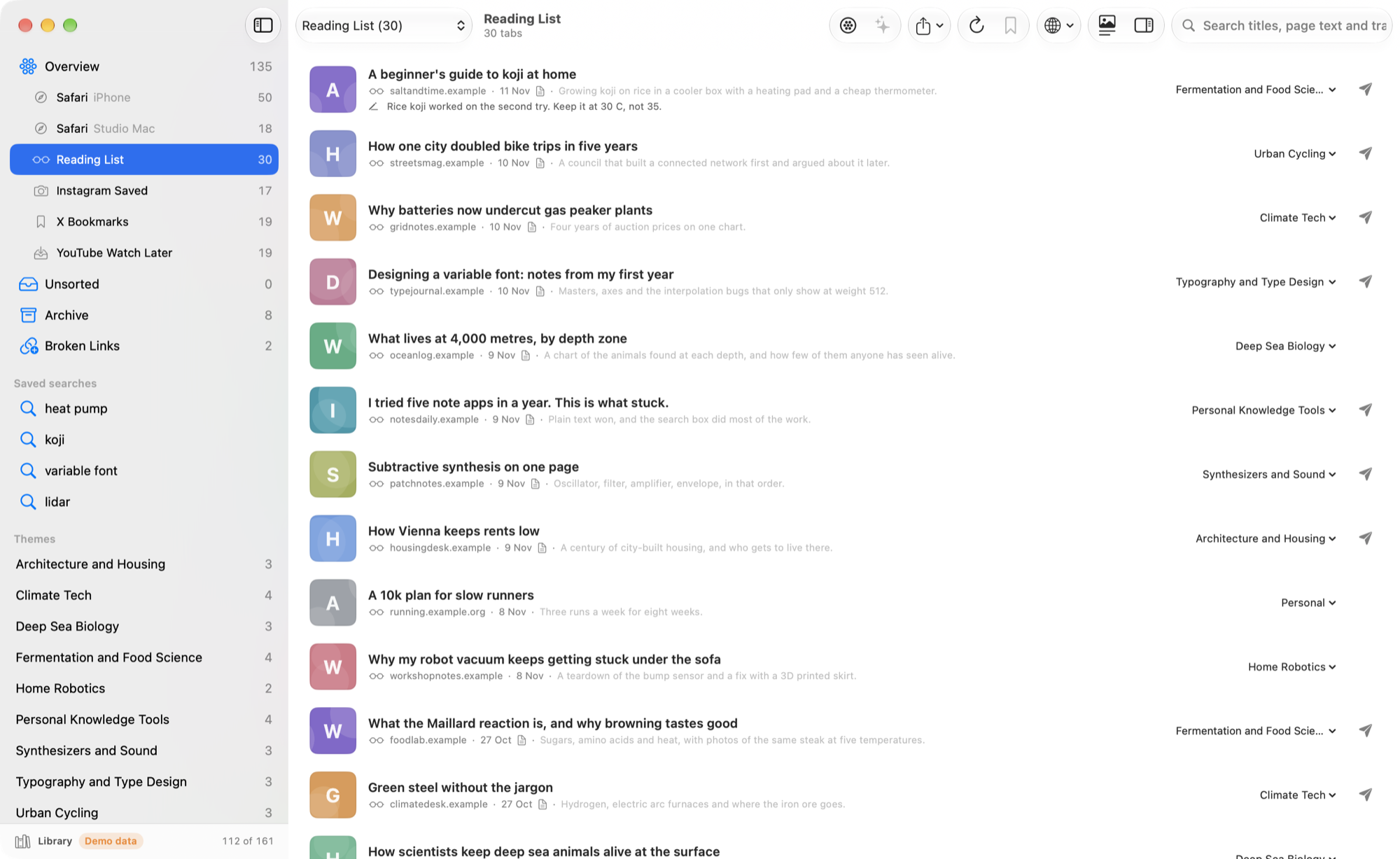
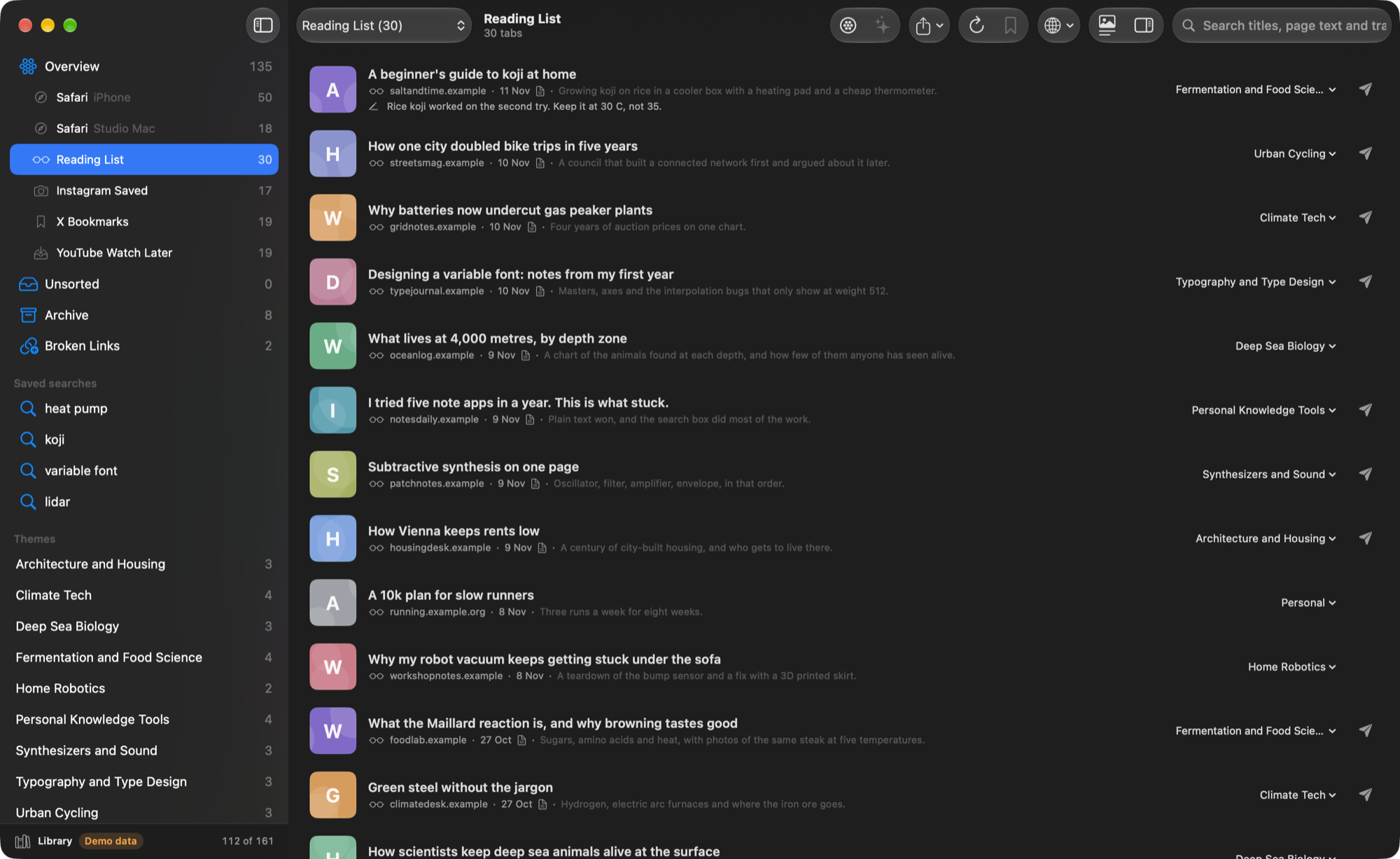
Links show as rows: thumbnail, title, source, date, what Sift saved and one line of preview. Rows have no buttons. Send, Follow, Copy, Add Note and the rest are in the context menu and above the open page. Pick a row and the page opens in a pane beside the list. Drag the divider to set its width. Saved pages and transcripts open on the saved text, and a switch shows the live page. The pane has back, forward, reload, Open in Safari and Send.
Scan, Watch, Read. The switch at the top of every list (Today, a feed, a folder, a source, a theme) shows one way of taking things in:
- Scan shows headlines and posts as short rows without pictures: Hacker News, Reddit, X, Bluesky and Mastodon. A row you scroll past counts as seen.
- Watch shows videos as cards with their length: YouTube, Shorts, TikTok, Instagram reels and Vimeo. Shorts, TikToks and reels are tall cards.
- Read shows blogs, newsletters and articles of any length, with the reading time and three lines of the summary. A thread on X goes to Read when Sift saved a long text for it.
All shows everything as before. The keys are 0 (All), 1, 2 and 3. Sift gives each item a mode from the link and the feed. A feed's context menu has Mode, to set it for every item of that feed. A headline whose article you open shows in the reader, and once you keep it with its text, it counts as Read.
A link is unseen until you open it, mark it (M) or scroll past it in Scan. A blue dot after the title marks it. Theme counts in the sidebar are unseen counts, and each list has Unseen Only and Mark All as Seen. Seen marks sync with the iPhone app through iCloud Drive, with one file per device, so there are no conflicts.
Keyboard
Single keys work in the main window when no text field has focus, in the style of Google Reader. Help > Keyboard Shortcuts (? or ⌘/) shows the list.
| Keys | Action |
|---|---|
| J / K, N / P | Next and previous item |
| O or Return | Open or close the page beside the list |
| V | Open the original in Sift's browser window |
| S | Keep (Today and feeds) |
| M | Mark seen or unseen |
| Shift-A | Mark every item in the list as seen |
| C | Copy the link |
| F | Follow the item's site |
| E | Send to the theme's destination |
| G then T, A, U, K, R, X, D | Go to Today, Overview, Unsorted, Kept, Closed or Removed, Transcripts, Duplicates |
| Shift-J / Shift-K | Next and previous feed or theme in the sidebar |
| 0, 1, 2, 3 | All, Scan, Watch, Read |
| R | Reload sources and check feeds |
| / | Search |
| A | Follow… |
Go to (⌘K, or View > Go to…) is a command palette: every sidebar place, every Settings pane, actions, links by title, Today picks and full-text hits. Type an address or a handle to follow it.
Send
A link stays in Sift until you send it where it will be used. Destinations:
| Destination | What a send does |
|---|---|
| Starlings workspace | Saves the link to your Links in that workspace's Docs (Starlings reads the page and keeps title, image and description) |
| Obsidian folder | Writes one note per link: front matter, your note, summary, saved text |
| Markdown file | Adds one line per link at the end of the file |
| Reading List | Adds the link to Safari's Reading List |
Sending is immediate. Each theme can name a default destination: then E,
or Send in the context menu, sends there, and the theme header can send all
of its links at once. A sent Safari tab goes on the iPhone close list. The sidebar
lists what went to each destination. Connect Starlings in Settings > Outputs:
Sift signs in like Claude Code (OAuth, no API key) and keeps the tokens in
the keychain. Destinations are plugins: one file per kind in Sift/Send/.
Closed or Removed
Sift keeps a record of every link it has seen: title, theme, use, preview and dates. When a link leaves its source (a tab closed on the phone, an item removed from the Reading List or an export), the record moves to Closed or Removed instead of being forgotten.
Library
Sift saves the readable text of every link into a library on your Mac: one
Markdown file per link, with the URL, title, author, site, theme and date at
the top, in ~/Library/Application Support/Sift/Library/. Articles keep
their headings, paragraphs and lists; PDFs keep their text; posts keep their
text (Instagram posts and TikTok videos their caption); YouTube videos keep their title,
channel and full description, which usually includes the chapters. With the
open-source youtube-transcript-api tool installed (Settings > Library >
Install Transcript Tool, which needs Python 3), Sift also
saves each video's transcript, newest saves first. The tool reads YouTube's
captions in a way YouTube has not sanctioned, so it can stop working; Sift
paces it and pauses for an hour when YouTube refuses. Errands are skipped. Capture runs on
its own in the background, with a progress bar at the foot of the sidebar,
and does not use Claude. When a tab closes, its text stays.
Instagram reels and TikTok videos get their speech as text too: the optional
open-source yt-dlp fetches the audio without a login or cookies, macOS
speech recognition writes it down, and the audio is deleted. When YouTube
refuses captions, Sift can do the same with a video's audio. The sidebar's
Transcripts list shows every link with a transcript. When a site refuses
requests, its job waits (one hour, doubling up to a day) and the sidebar
footer says until when.
X posts
Without setup, X posts show their text through X's public oEmbed endpoint. An opt-in setting uses X's embed data for images, avatars and the real URLs behind t.co links (unofficial, may stop working).
With your own X developer app connected (optional, and X bills your developer account per post read), Sift draws posts natively with no web page: author, full text, images, video, quoted posts and links, following X's display requirements. It reads posts in batches of 100, caches them, refreshes a post only when its copy is older than a week, and drops posts that X no longer returns. It can also bring in your 800 most recent bookmarks.
To connect: create a Native App in the X Developer Console with callback URL
http://127.0.0.1:53682/callback and the scopes tweet.read, users.read,
bookmark.read and offline.access. Paste its Client ID in Settings >
Inputs > X and click Connect.
Closing tabs on the iPhone
A Mac cannot close tabs on another device. Sift writes the tabs you mark to
iCloud Drive/Sift/close.txt, and a Shortcut on the iPhone closes them. The
ready-made Shortcut is one tap: install "Sift: Close Tabs"
(Sift also shows it as a QR code). It splits the list by lines, and for each
address finds the tab, switches to it and closes it. iOS 17 or later.
Chrome
Sift reads Chrome's open tabs through a small extension in
ChromeExtension/ (Manifest V3, permissions tabs and nativeMessaging
only). The extension sends the address and title of each open tab to
sift-chrome, a helper inside Sift.app, through Chrome's native messaging.
The helper writes one file per profile to
~/Library/Application Support/Sift/chrome/. Nothing goes over the
network. Each profile is its own source; one that has not reported for a
day shows as stale.
Chrome is on the same Mac, so Sift closes Chrome tabs itself: a tab you mark
to close goes to chrome/close.json, and the extension closes it within a
minute while Chrome runs.
To set it up: Settings > Inputs > Chrome > Install Chrome Helper (or the
Chrome step of the Setup Guide). Sift writes the helper's manifest for each
Chromium browser it finds, copies the extension to
~/Library/Application Support/Sift/ChromeExtension and shows it in Finder.
Then open chrome://extensions, turn on Developer mode, click Load unpacked
and choose that folder. The extension is not in the Chrome Web Store yet.
Export
The Export menu writes your themes and links out:
| Exporter | What you get |
|---|---|
| Obsidian Vault | One note per link and per theme with front matter and [[wikilinks]], so Obsidian's graph view shows themes as hubs. Your text under "## Notes" survives re-exports. |
| Markdown File | One file, a section per theme |
| Copy as Markdown | The same, on the clipboard |
| CSV File | One row per link; File > Import Sorted CSV reads it back |
| JSON File | The full snapshot, for scripts |
Each exporter is one Swift file. Adding one is the easiest way to contribute; see CONTRIBUTING.md.
Claude and sift-mcp
Sift ships an MCP server, sift-mcp, so your own Claude can use your
library. Settings > Intelligence > Add to Claude Code runs
claude mcp add --scope user sift -- /Applications/Sift.app/Contents/MacOS/sift-mcp.
- Claude can read: it searches titles, page text, transcripts and summaries, lists themes and their links, and reads a link in full. Search leaves out links you dropped as noise and errands, and ranks what you kept, sent or noted first.
- Claude can act: it merges and renames themes, files a link, adds a note,
sorts, proposes and applies new themes, follows and unfollows feeds, sets
a feed's place in Today, marks links seen, keeps and sends.
sift-mcpnever writes Sift's files itself. It leaves a request that the running app carries out, the same way a button does, and opens Sift in the background if it is closed. Settings > Intelligence lists Claude's recent actions.
docs/mcp.md lists every tool and its arguments.
iPhone
A prototype iPhone app, Sift Deck (prototypes/ios-deck), shares Sift's
folder in iCloud Drive. Its tabs are Scan, Watch and Read, each with a
Today / Library switch at the top: Today is what your feeds offer, Library
is what you saved. Scan is a list of headlines, Watch is full-screen video
cards (swipe moves on and marks seen, double-tap keeps), Read is articles
with the reading time. Tap opens the reader. Lists holds the review deck,
your feeds, themes and the log. Follows, keeps, seen marks and reading signals from the phone go
back to the Mac through files in iCloud Drive/Sift; the Mac does all the
fetching. It is not in the App Store. Build it from Xcode.
What Sift sends where
- To Claude, through your Claude Code login or your own API key: for theme discovery and sorting, each link's title, URL and short preview text, plus your theme names. Never whole pages. Errands never go to Claude.
- To Apple's on-device model, which runs on this Mac: the same title, URL and preview for sorting, and saved page text for summaries. Nothing leaves the Mac.
- To each site, once: a request for its page, for the preview and the
library. TikTok videos: their public page, and the audio through
yt-dlpif you installed it. X posts go to X's oEmbed endpoint, and to its embed data or API only if you turn those on. - To Sift's diagnostics, once a week: an anonymous report with the app and macOS version, which kinds of source and destination you use, which switches are on, and rough sizes such as "100-999 links". No link, title, theme name, note or install id. It is on by default; Settings > Telemetry turns it off and shows the exact report. Privacy contract · Community Pulse
- Nowhere else. Sift has no account. It reads Safari's files and never writes to them. Add to Reading List asks Safari through its own scripting command, and macOS asks you to allow that once.
Requirements
- macOS 14 (Sonoma) or later
- Full Disk Access, to read Safari's synced tabs and Reading List
- One of: Claude Code signed in (the
default; Sift runs
claude -pwith tools, MCP servers and settings turned off), or an Anthropic API key in your keychain - Optional: iCloud Tabs on, for tabs from other devices
- Optional: macOS 26 or later with Apple Intelligence on, for sorting and summaries on this Mac
Install
Download the latest Sift-x.y.z.zip from
Releases, unzip it and move
Sift to Applications. Releases are signed with a Developer ID, notarized by
Apple, and carry a build provenance attestation. To check that a download
came from this repository's release workflow:
gh attestation verify Sift-1.6.7.zip -R michellzappa/sift
Each release also has a SHA256SUMS file.
First run
On first launch Sift opens the Setup Guide: Welcome, Sources, Chrome, Claude, Library, Themes, Send and a few tips. Only Welcome is required. Sources is where you turn on Full Disk Access for Safari's tabs and Reading List. macOS does not list the app until you add it: in System Settings, open Privacy & Security, then Full Disk Access, click +, and choose Sift. Sift checks again when you come back. Themes runs Discover Themes, and after you accept the themes, the graph is ready. Help > Setup Guide opens the guide again at any time. When an update adds a step, Sift shows only that step, once.
Build it yourself
./scripts/build-app.sh # builds, signs and copies to /Applications/Sift.app
You need Xcode and xcodegen. Set your own DEVELOPMENT_TEAM in
project.yml first. The build number is the git commit count.
project.yml signs with an Apple Development identity, not ad hoc, because
macOS ties the Full Disk Access grant to the code signature: an ad hoc build
loses the grant on every rebuild. Set SIGN_IDENTITY to use another
identity. Sift uses HouseKit, a small package it shares with other apps, for
the Settings shell and the changelog; Swift Package Manager fetches it. The
app icon is Sift's own: scripts/icon/make-icon.swift writes it.
Demo mode
Start Sift with -demo (or SIFT_DEMO=1) to run it on made-up sample
data instead of your own:
open -n -a /Applications/Sift.app --args -demo
Demo mode keeps every file in ~/Library/Application Support/Sift-Demo and
replaces that folder with the sample data on each launch, so every run starts
the same. It never reads your Safari tabs, Reading List, Instagram export,
Chrome, X account or keychain, and it never goes online: no previews,
capture, transcripts, Claude, on-device model or Starlings. Sending a link
only records it as sent. A "Demo data" badge sits at the foot of the
sidebar.
The sample data is in Demo/, made by python3 scripts/demo/make-data.py
from scripts/demo/content.py (thumbnails by
scripts/demo/make-images.swift).
The README screenshots come from demo mode only. With Sift installed in
/Applications and Screen Recording allowed for your terminal, run:
scripts/screenshots.sh
It quits Sift, opens it in demo mode once per view and appearance, and
writes docs/images/<view>-light.png and <view>-dark.png (overview,
theme, list, settings-library, settings-outputs).
Updates
Once a day Sift asks GitHub for the latest release. When there is a new one, "Update to X" shows in the toolbar and in Settings > General (also Sift > Check for Updates…). The update checks the download's checksum, Apple's notarization, the signature and the team before it replaces the app. Sift > Version History… shows the changelog.
Releases
Push a tag that matches CFBundleShortVersionString, for example v1.6.7.
The workflow in .github/workflows/release.yml builds a universal app,
signs it with Developer ID, notarizes and staples it, attests its provenance,
and publishes the ZIP and SHA256SUMS. It needs these repository secrets:
APPLE_TEAM_ID, APPLE_DEVELOPER_CERTIFICATE_P12_BASE64,
APPLE_DEVELOPER_CERTIFICATE_PASSWORD, APPLE_API_KEY_ID,
APPLE_API_ISSUER_ID and APPLE_API_PRIVATE_KEY_BASE64.
Settings
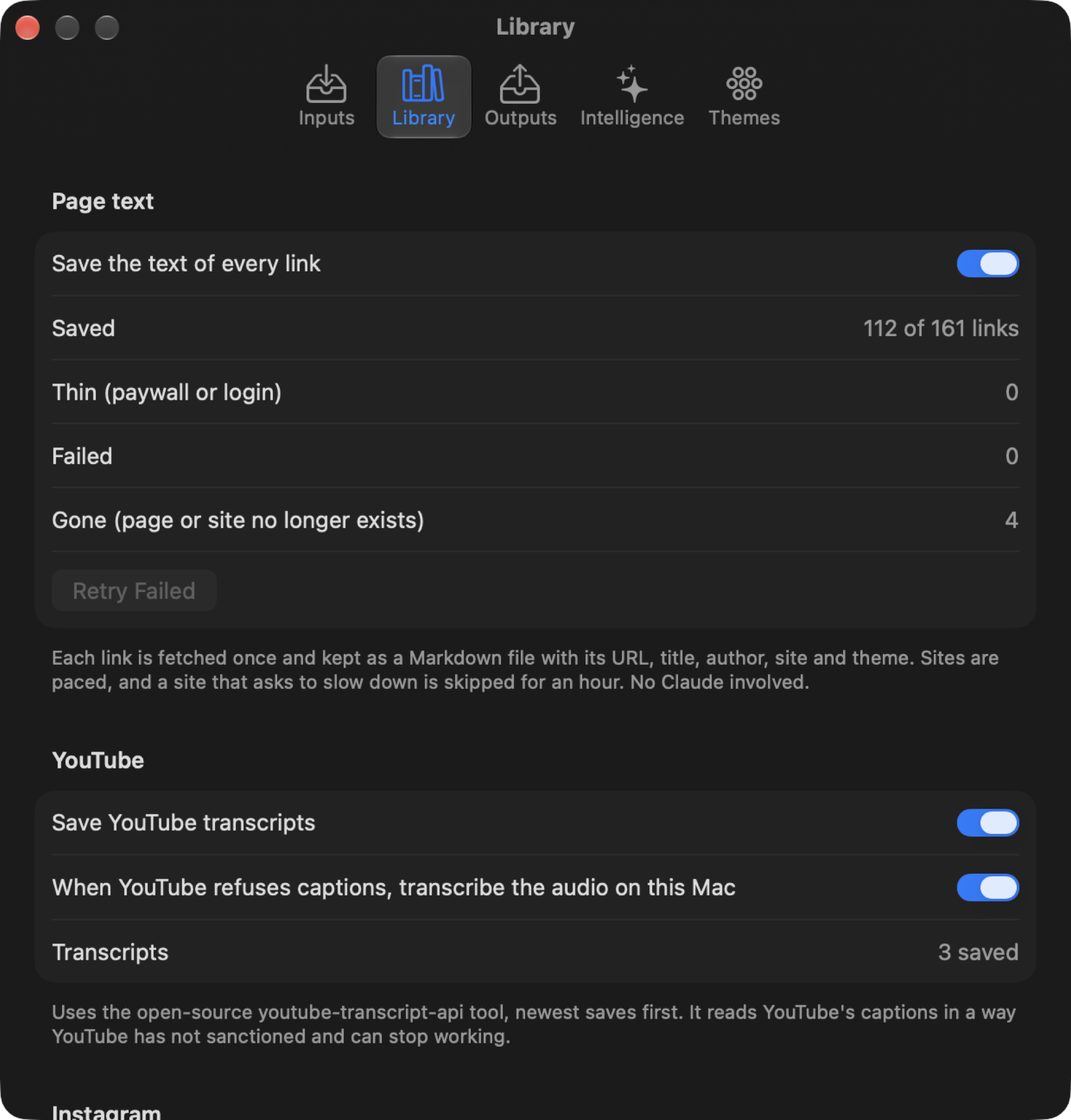
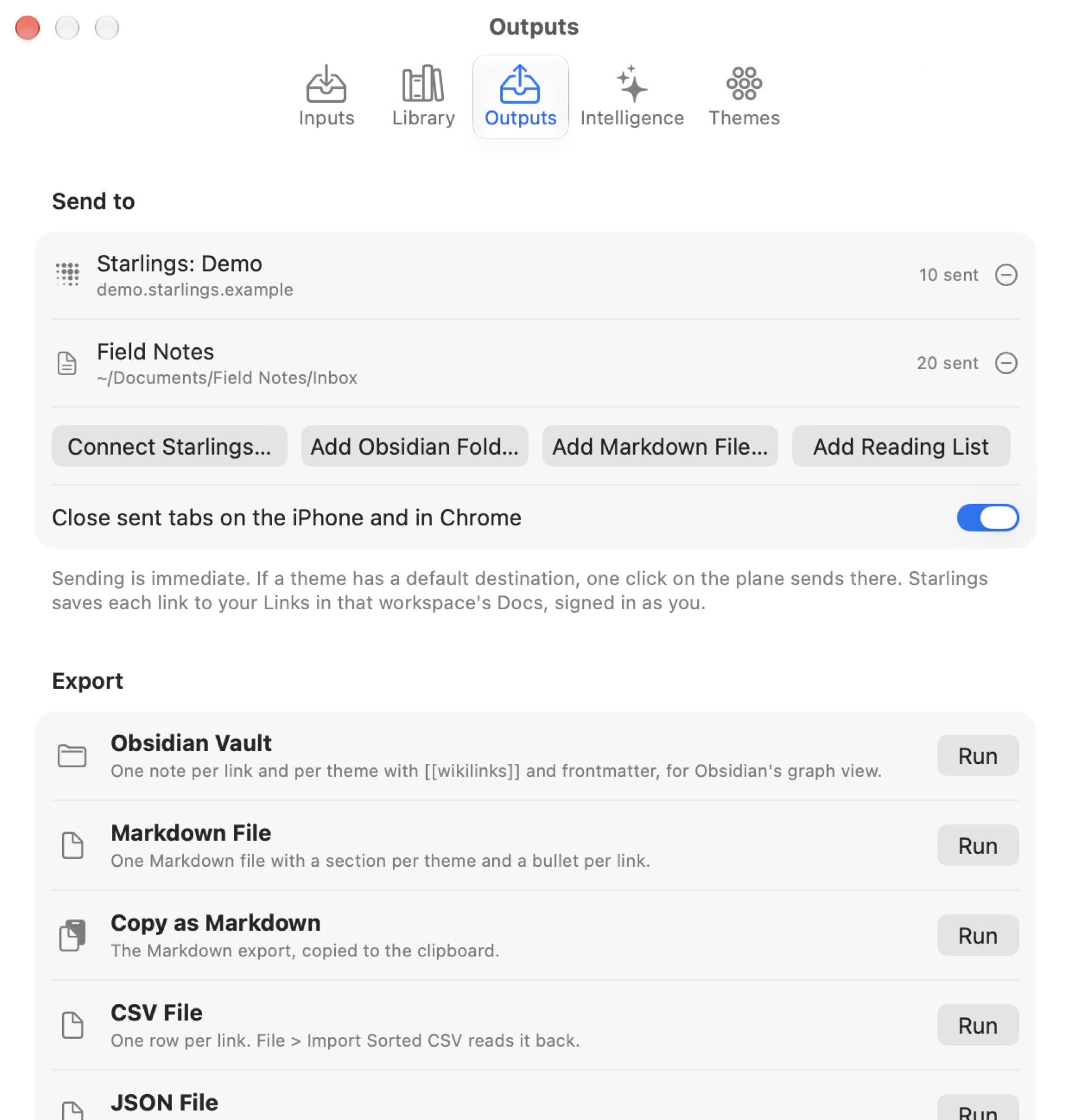
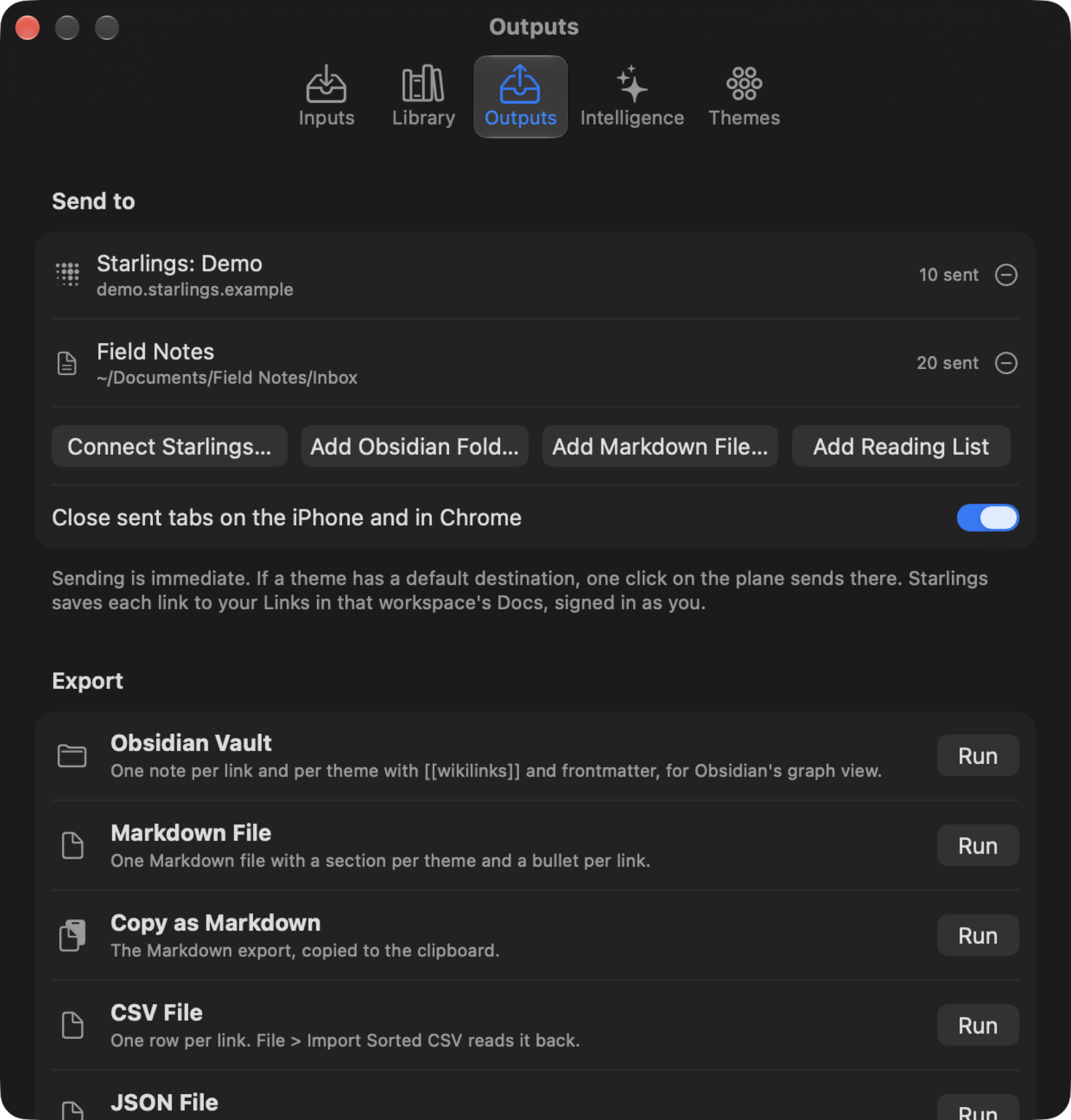
Settings has eight panes: General, Inputs, Library, Outputs, Intelligence, Themes, Telemetry and About.
Inputs lists every source with its status and actions: Safari tabs (devices and tab counts, the tab database, Full Disk Access), the Reading List, Chrome, the Instagram and TikTok exports, X (preview options and the optional X API connection with Sync Bookmarks), feeds (Follow, Import and Export OPML, Check Now) and imported link files.
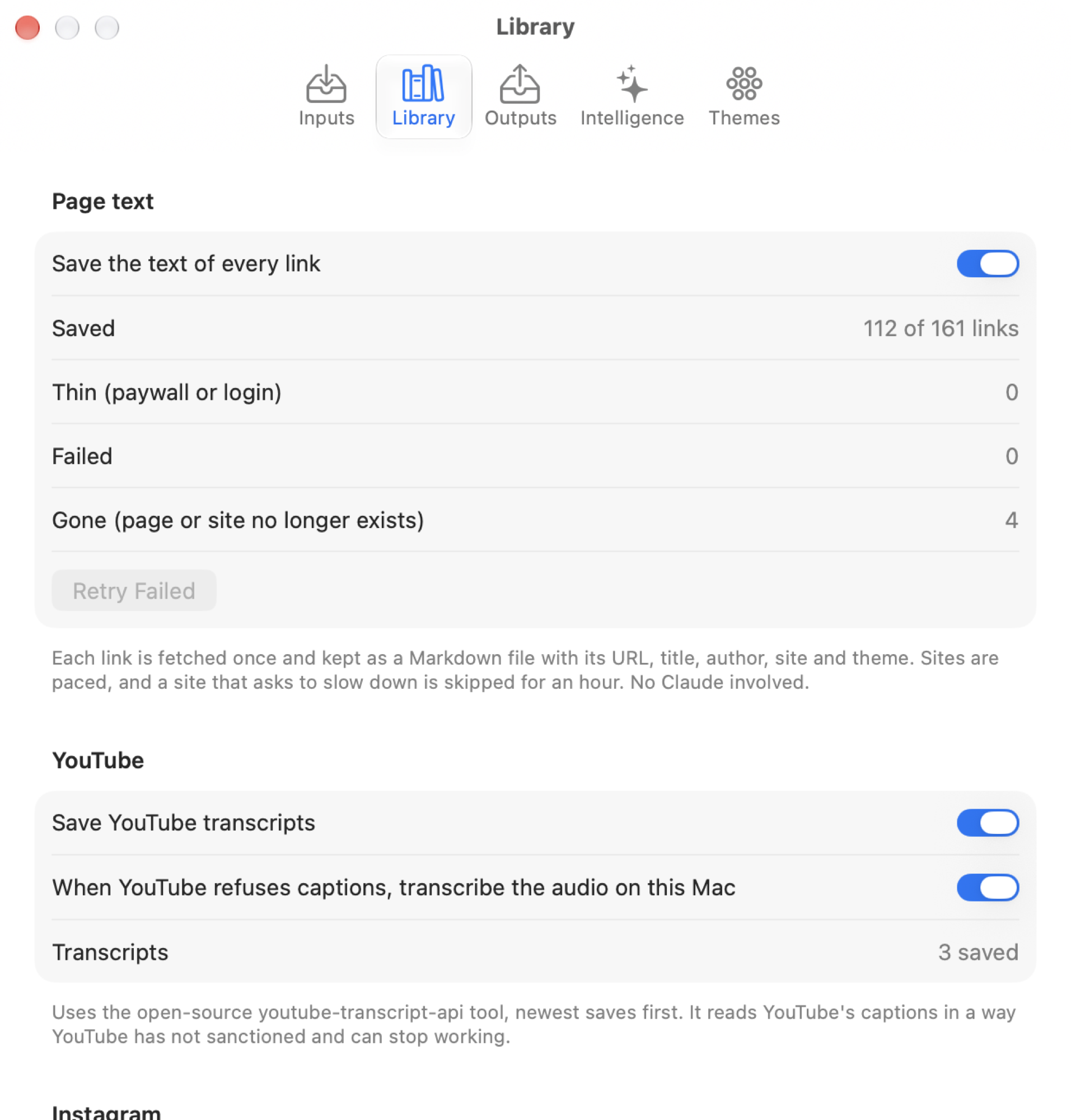
Library controls what Sift saves on this Mac. Each kind has its own
switch and counts: page text (saved, thin and failed, with Retry Failed),
YouTube transcripts (with Install Transcript Tool), Instagram post images,
and what Instagram reels say (with Install Reel Tool: the open-source
yt-dlp fetches each reel's audio without a login, one every 4 seconds,
macOS speech recognition turns it into text, on the Mac where the language
allows, and the audio is deleted). It shows progress while each runs, the size on disk, and Show
Library in Finder.
Search works in every list: the filter field searches titles, saved page text and transcripts (SQLite full-text index on this Mac).
Upkeep. Duplicates (the same page from two sources, or with tracking parameters) show under Duplicates, with Merge All. Pages that are gone (not found, or the site no longer exists) show under Broken Links; Sift keeps what it saved. Each link can carry your own note (right-click > Add Note), which search and Claude see. Any search can be saved to the sidebar.
Theme memory. Each theme keeps a dated history (found, renamed, rediscovered with how many links), and the theme header picks where its links are sent.
Connections. After sorting, Claude marks links that feed a second theme. The graph pulls those themes closer and draws a dashed line from the link to the other theme.
Outputs runs each exporter and shows its last folder or file, shows the iPhone close list and the Shortcut guide, and explains Add to Reading List (Safari asks once for Automation permission).
Intelligence chooses Claude Code or an API key (claude-opus-5-5 at low
effort) and stores the key in the keychain. It also adds sift-mcp to
Claude Code, lists Claude's recent actions, and has the on-device model
switches below.
On this Mac. On macOS 26 or later with Apple Intelligence on, Apple's
on-device model does part of Claude's work, for free and offline. When you
sort, it looks at each new link first. Errands and noise it is sure about go
straight to their buckets, and a link that clearly fits one of your themes
goes there. Claude sorts the rest. After a page or transcript is saved, the
model writes a one-paragraph summary into the library file and the search
index, and sift-mcp returns it. Summaries run one at a time, newest first,
and wait while the Mac runs on battery. Settings > Intelligence > On this Mac has a
switch for each feature, says whether the model is available, and counts the
links each model sorted. On older Macs, Claude does all of it as before.
Themes lists your themes. You can rename, merge or delete one, add one by hand, find new themes for unsorted links, or run Discover Themes again.
Telemetry has the switch for the weekly anonymous report, shows the exact report, and, while it is on, the Community Pulse: what Sift users as a group use, in counts that hide anyone small.
Architecture
About 18,000 lines of Swift. The only package is HouseKit (Settings shell, changelog).
Storage/CloudTabsReader | Safari's synced tabs (CloudTabs.db, SQLite, read-only) |
Storage/ReadingListReader, InstagramReader, TikTokReader, LinkImporter | The other saved sources |
Engine/Feeds, Feeds/* | Feed parsing and fetching, one provider plugin per kind of input, full text, icons |
Engine/Today, Feeds/Signals | The Today ranking and what Sift learns from your reading |
Engine/Transcripts, ReelTranscripts, TikTokDetails | YouTube transcripts, reel and TikTok speech, TikTok captions |
Engine/SearchIndex | The SQLite full-text index that search and sift-mcp read |
SiftMCP/, Shared/ | sift-mcp and the request files it shares with the app |
Telemetry/ | The weekly anonymous report and the Community Pulse; telemetry/ is its Worker |
Storage/ChromeReader, ChromeHelper | Chrome tabs from the extension, and the helper setup |
SiftChrome/ | sift-chrome, Chrome's native messaging host (embedded in the app) |
ChromeExtension/ | The Chrome extension (plain JavaScript, no build step) |
Storage/Previews | Page previews (Open Graph, X oEmbed and embed data) and the iPhone close list |
Storage/Archive | Every link Sift has seen, and what it knows about it |
Storage/StateFile | Settings, themes and assignments, as one JSON file |
Engine/Capture | Page capture, text extraction and the Markdown library |
Engine/LocalModel | Apple's on-device model: first pass, theme picks and summaries |
Send/* | Destinations: Starlings (OAuth + MCP), Obsidian, Markdown, Reading List |
Sorting/Sorter | Theme discovery and sorting through claude -p or the Messages API |
Sorting/Errands | Rules for transactional tabs |
X/* | Optional X API: sign-in, client, cache and the native post view |
Export/* | The exporter protocol, the registry and one file per exporter |
App/* | AppModel (split by area), keyboard map, command palette, updates |
Views/* | Sidebar, graph, lists, reader, Today, Follow sheet, settings |
Swift has no official Anthropic SDK, so the API backend uses plain HTTP.
Limitations
- Sift cannot close Safari tabs from the Mac; closing goes through the iPhone Shortcut. Chrome tabs close directly.
- Sift cannot remove items from the Reading List or from imported files.
- Pages behind a login have no preview and only thin text in the library.
- TikTok exports have no captions, so a TikTok video shows only its link until Sift reads its page.
- Feeds and TikTok captions come from public pages: private or deleted items stay as links.
- One link belongs to one theme.
License
MIT. See LICENSE.